TwiWorks Login Backend
For an overview of all login methods (including ones that do not require a server), please refer to this page.
TwiWorks offers an easy way to allow your users to log into twitch. I'm afraid that this (currently) requires you to create a twitch application, and to host a (small) APACHE/PHP/MYSQL backend. This is due to the way twitch works. Let's first start off by creating a Twitch application.
To create a Twitch application, head to the Twitch Developer Console. You'll need a Twitch account with two-factor authentication for this. Next, head to Applications > Register Your Application and fill out the form to create your Twitch application. You can use any name you want, and can use anything for your redirect URI for now (we will change this once we set up our back end). Select Game Integration under the Application Category dropdown, agree to the terms, and press the Register button.

After creating the application, press the manage button next to it. You should now see a Client ID appear. Copy this over to a safe place for easy access while setting up your backend. Next, press the new secret button to create a new secret API token, and copy this over. Please keep in mind that this secret will only be shown to you once, and that loosing it means you'll need to reset it (breaking anything that might be using it). With those two pieces of information, you should now be ready to set your back end up! Keep the window open for now - we'll need to set up the Redierct URI in a bit.
There are two ways of doing this, by deploying a docker container (easiest; recommended if you're not running an existing web server), and by setting up the database manually & uploading the backend to your webserver. I'll address each of these in a paragraph or two down below.
A quick note on HTTPS
Twitch recently (yes, this is an old document) tightened up their security policy, and will now require you to use HTTPS/SSL encryption for the backend/OAuth Callback URL. This change should not apply to pre-existing applications, but will apply to newly created ones. In any case, HTTPS is very highly recommended to help safeguard a user's credentials.
In light of this change, you'll need to either use a hosting provider that supports traffic over HTTPS (if you're using the Apache setup; most modern-day web hosts will come with this out-of-the-box), or configure HTTPS support yourself (in case you're using Docker/your own server). We'll list a few articles on setting up HTTPS support below. Please note that this is in no way an endorsement, and we highly recommend you do your own research before picking a solution.
-
https://www.freecodecamp.org/news/docker-nginx-letsencrypt-easy-secure-reverse-proxy-40165ba3aee2/
-
CloudFlare's Flexible SSL solution allows users to connect to CloudFlare over HTTPS, but CloudFlare will connect to your server over (unencrypted) HTTP. Please do be aware of the lesser security of this.
-
If you're using a Cloud provider, such as DigitalOcean or AWS, you might be able to terminate SSL using the load balancer: https://docs.aws.amazon.com/elasticloadbalancing/latest/application/create-https-listener.html & https://www.digitalocean.com/docs/networking/load-balancers/how-to/ssl-termination/
As you can see from the list above, SSL setup will vary wildly between providers, web hosting setups and the like. Though we'd love to document and support each and every one of them, we're afraid that there are simply too many to cover. We highly recommend taking the time to investigate which of these solutions will work best for your project, and would like to remind you that you might be able to use the Hosted Development Backend while you're working on setting your own one up!
Downloading the required files
By downloading these files you agree to not redistribute them & will only use them with HowToCompute assets; This latest version includes fixes for the new (chat) authentication scopes
Before continuing further, you'll need to download the required backend files. This is required for both the Docker & Apache setups. The backend files can be downloaded from Google Drive here.
Setting up the backend
As mentioned previously, you set up the backend using either Docker or Apache. Please select the option of your choosing using the tabs below for more detailed setup instructions.
- Docker
- Apache
The easiest way of setting up TwiWorks is by using a docker container. In order to use this method, please ensure you have a host set up and access to docker on this host. Want to set up Docker on an Ubuntu Linux server? Then we recommend you check out this great Docker installation guide from Digital Ocean: https://www.digitalocean.com/community/tutorials/how-to-install-and-use-docker-on-ubuntu-16-04.
Now you have the files, head into DockerResources, and open up config.ini. Copy over your Twitch Client ID, and Twitch Client Secret from above into the client_id and client_secret fields under the twitch section respectively. Now decide the domain you're going to be giving to this docker container, and add /twitch_callback to the end. This will be your twitch_redirect_uri. An example of the docker container running at foo.bar.com would be: https://foo.bar.com/twitch_callback. Now save this file, and head back to the root directory of the TwiWorks backend.
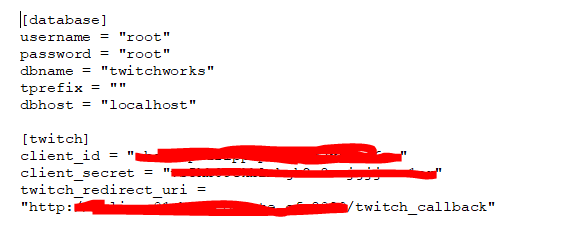
Back in the root directory of the TwiWorks backend, execute the following command:
docker build -t twiworks .
This will build the docker container, and tag it as twiworks so we can easily run it in a minute. This command may take a while to execute, but please be patient as it builds your container. Once this has completed, we can use the following command to run it in the background, listening on port 80 (for HTTP; you'll need to terminate SSL somewhere else, see the previous note):
docker run -d -p 80:80 twiworks
You can vary the command like this: docker run -d -p 8080:80 twiworks to expose port 8080 instead of port 80 (this may be useful if you have another web server running already).
Once the container is running, we can easily check if everything is working properly. To do this, head to the domain name your docker container has, and add /twitch_integration_api?action=START to the end. In our foo.bar.com example, that'd be: https://foo.bar.com/twitch_integration_api?action=START. If this returns a key & token, you have successfully set up docker! If you are hitting any issues, please check your DNS has been set up, your SSL setup, and you're connecting to the right port. You can also try connecting locally by running something like curl http://127.0.0.1/twitch_integration_api?action=START. If the issue still persists, please quickly check the troubleshooting section, and if the issue persists, send us an email (details at the end of the troubleshooting section).
In order to use the Apache setup, please ensure you have a web host (or are running your own server) that has Apache, MySQL & PHP7 installed. Though this should theoretically work with NGINX, you might need to convert the .htaccess file. Other hosting setup (including NGINX) are unfortunately outside of the scope of this documentation.
The first thing you'll want to do is upload the files you downloaded before to the server. This process will work differently for every webhost, but will likely involve your admin panel or an FTP client. Feel free to place these in any subdirectory of your website, but keep note of where they are as we'll need this later.
Now that the files are on your webserver, head to where you uploaded them and add /setup.php. If you'd have the domain foo.com, and would have uploaded the files to /twiworks, you'd get the following URL: https://foo.com/twiworks/setup.php. Once the page loads, you should be greeted with a form like the screenshot below.

Fill this form out using the credentials your hosting provider gave you. The Host, Username and Password fields are your MySQL credentials. The database field is the name of the database you want to use. You can create this yourself beforehand, or the form will automatically generate it if it doesn't exist yet.
Your Twitch Client ID and Twitch Client Secret are the same as you noted down before, and your Twitch Redirect URI should be wherever you installed TwiWorks, with /twitch_callback added to the end of it. If your domain is foo.com, and you placed TwiWorks in a subdirectory called twitch, you'd end up with https://foo.com/twitch/twitch_callback. Once you've filled all these details out, hit Save, and if it gives you a success message you're almost done! If you hit a failure here, consult the error message contains any steps, and take a look at the troubleshooting section for further guidance.
Once you've successfully set up the backend, you'll likely want to remove the setup.php file. This will ensure people can't change your configuration or take advantage of your server through the setup page. Though this is optional, we HIGHLY RECOMMEND THIS!
Connect The TwiWorks Plugin
Now for both the docker and apache setup, you will need to head back to your twitch application one more time, and update the OAuth Redirect URI field to be the URL you also set up in the setup file. Next, we'll want to add this to the game too, so if we recall our foo.bar.com example from above, the following would be set under Edit > Project Settings > TwiWorks.
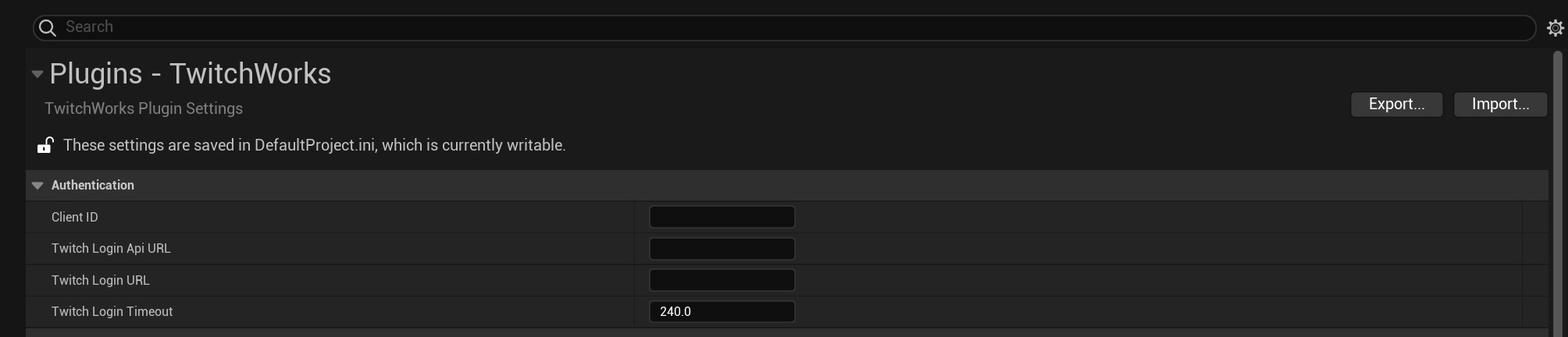
Also be sure to copy over your Twitch Client ID to the settings here using the Client ID field.
Once you've done this, the hard part is over. All you'll need to do is add a few nodes to your game and you should be set to go! See the quickstart guide for more information.
Customizing OAuth Scopes
Removing OAuth scopes can cause features or the entirity of TwiWorks to stop functioning.
Starting with version TBA the OAuth scopes that TwiWorks requests can be customized using the configuration file. This can be used to only request the scopes that you intend on using. Please note that removing OAuth scopes can break some of TwiWorks' functionality. When removing scopes for features (such as point events, whispers, follow detection, etc.) please ensure you disable the corresponding features in the TwiWorks settings panel. Furthermore, when things aren't working keep an eye on your Output Log (or log file). With TwiWorks version 2.0+, it will log a warning when it detects a missing scope on the user's OAuth token.
To edit the scopes, simply open up your config.ini file. For the docker system, you'll find this in the DockerResources directory and on the Apache version you'll find it in the private directory. In the twitch section, you'll find multiple entries that look like scope[]=.... This is how TwiWorks stores scopes - one entry per line prefixed with scope[]=. If there are none in your configuration file, then please ensure you are running the latest version of the backend and re-run the setup.php (for the Apache version).
The following OAuth scopes are included with TwiWorks out of the box. Please note that this list is accurate as of writing, but might change in the future as TwiWorks features change. Pulling the latest version of the backend and taking a look at the config.ini in DockerResources is the best source of up-to-date information.
user:read:chatuser:write:chatmoderator:read:chattersuser:read:subscriptionsmoderator:read:followersmoderator:manage:announcementsuser:manage:whispersmoderator:manage:banned_userschannel:manage:redemptionsmoderator:manage:chat_settings